




Frequently Asked Questions
For your Mac:
Visit our website https://my.vpntracker.com and log in using your equinux ID and password.
Open the section "Products & Subscriptions" to find all purchased plans and the term of your subscription.
Click "Payment methods" in the sidebar to manage your subscription.
For iOS:
All Apple subscriptions are managed in iTunes on your computer. This link will bring you directly to the management area for your profile:
https://apple.co/2Th4vqI
When you are using your mobile device:
‣ Go to the App store app.
‣ Tap on your Apple ID.
‣ Click on "Subscriptions."
‣ Choose VPN Tracker World Connect.
You can purchase your World Connect Pass independently of an active VPN Tracker 365 plan.
Haven’t tried the demo yet? Download the VPN Tracker 365 app for free from our website and start your trial.
Data security and data protection are very important topics for us. Because of this we developed VPN Tracker World Connect.
We don't keep any logs about your usage. We don't save any user information about your usage, the duration of your connection or which connections you are using.
As #1 VPN client for Mac, we have many years of experience in data security and VPN.
It is of course also possible to use World Connect with the VPN Tracker 365 App.
- Multiprotocol VPN support
- High speed connections
- Zero-config VPN - thanks to TeamCloud & Personal Safe technology
No, there are no data limits or restrictions for VPN Tracker World Connect.
Visit my.vpntracker.com, log in to your account, and go to "Subscriptions" to update your payment method.
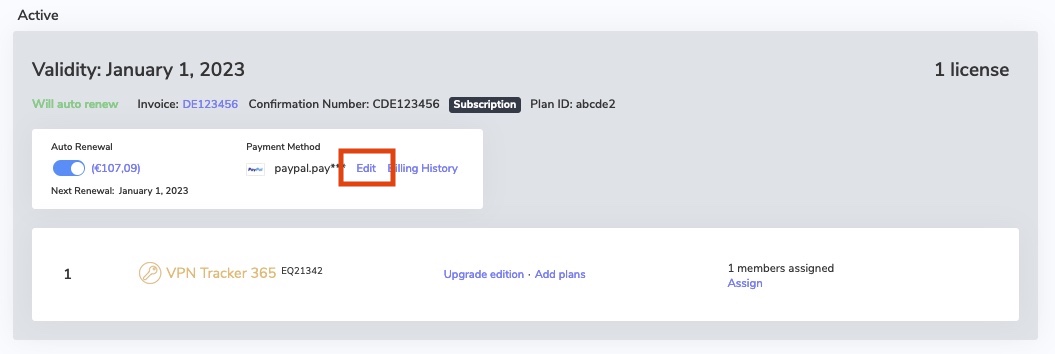
Go to your current subscription and click on "Edit" to change the payment method. Click "Choose another way to pay" to add a new credit card or alternatively, add a PayPal account. This will be used as your new default payment method for your plan.
‣ Go to "VPN Tracker" > "Refresh My Account"Then, try to activate your VPN Tracker again.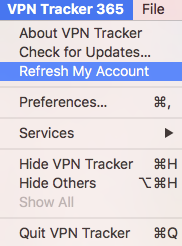
- Germany
- Austria
- United States
- Australia
- Brazil
- Canada
- France
- Japan
- Luxembourg
- Netherlands
- New Zealand
- Singapore
- Spain
- Sweden
- Switzerland
- United Kingdom
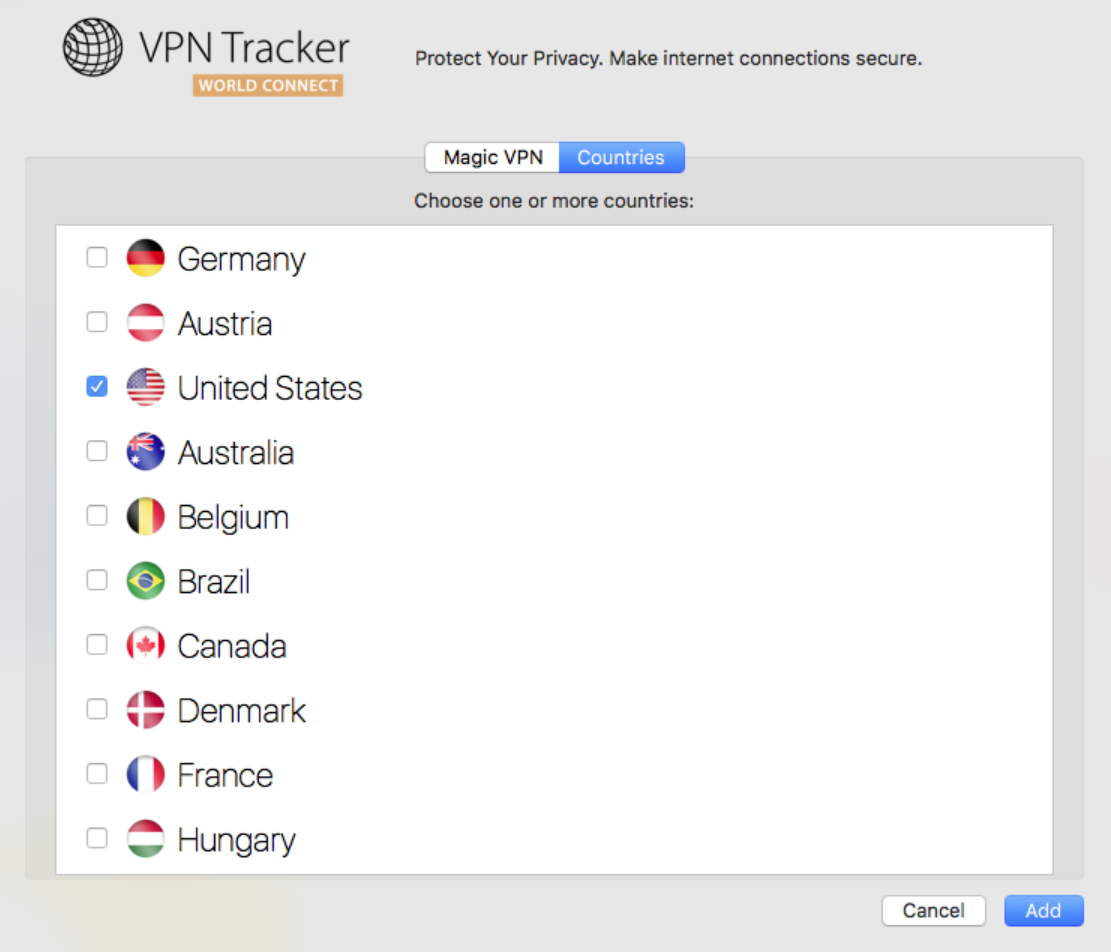
‣ Choose "File" > "New" > "World Connect Destination"‣ Then, choose "World Connect" and "Countries"
‣ Check your country of choice:
‣ Open "System Preferences." ‣ Click "Language & Region."‣ Change to your preferred language by dragging your selected language to the top of the list.
‣ Close your software. For example, with VPN Tracker, you can do so by choosing "VPN Tracker" > "Quit VPN Tracker."
‣ Reopen the software.
After connecting to a country, VPN Tracker World Connect is automatically given an IP address from that location. By clicking on the link below, you will be able to check your location at any time: https://www.whatismyip.com
Underneath "Country" you will see which country your IP address from VPN Tracker World Connect is registered in.
This link will directly take you to your profile administration:
https://apple.co/2Th4vqI
You will find all running subscriptions under "Subscriptions." You can also disable the automatic extension of your subscriptions.
- Press "Shift" (⇧) + "Cmd" (⌘) + "4" then click and drag the mouse cursor to capture a specific area of your screen.
- Press "Shift" (⇧) + "Cmd" (⌘) + "4" and then the space bar to capture a specific window or element on your screen.
- Alternatively, press "Shift" (⇧) + "Cmd" (⌘) + "3" to capture your full screen.
- If the app you want to quit is in your dock, hold the "Option" (⌥) key and right-click on the app icon, then, select "Force Quit" from the menu.
- You can also hold down "Option" (⌥) + "Cmd" (⌘) + "Esc" which will trigger a window with a list of apps you have running. To force quit one or more of these apps, simply select it from the list and click the "Force Quit" button.
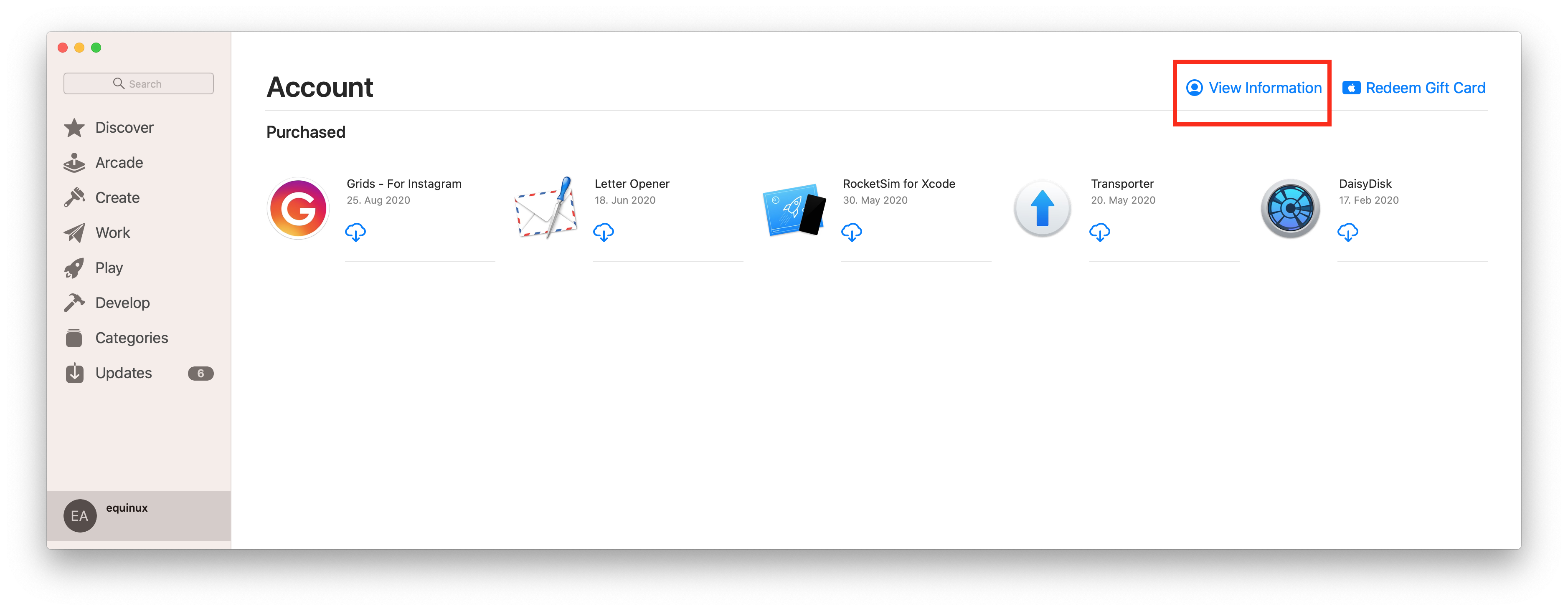 Click on "Manage" to view and edit your subscriptions on your Mac.
You can find out more information from the Apple Support website.
Click on "Manage" to view and edit your subscriptions on your Mac.
You can find out more information from the Apple Support website.
- Open the Terminal on your Mac (Applications > Utilities > Terminal)
- Copy and paste the following command, then hit enter
defaults delete com.equinux.VPN-Tracker-World-Connect.mac VPNGatewayList
- Download VPN Tracker 365
- Create an account
- Verify your email address
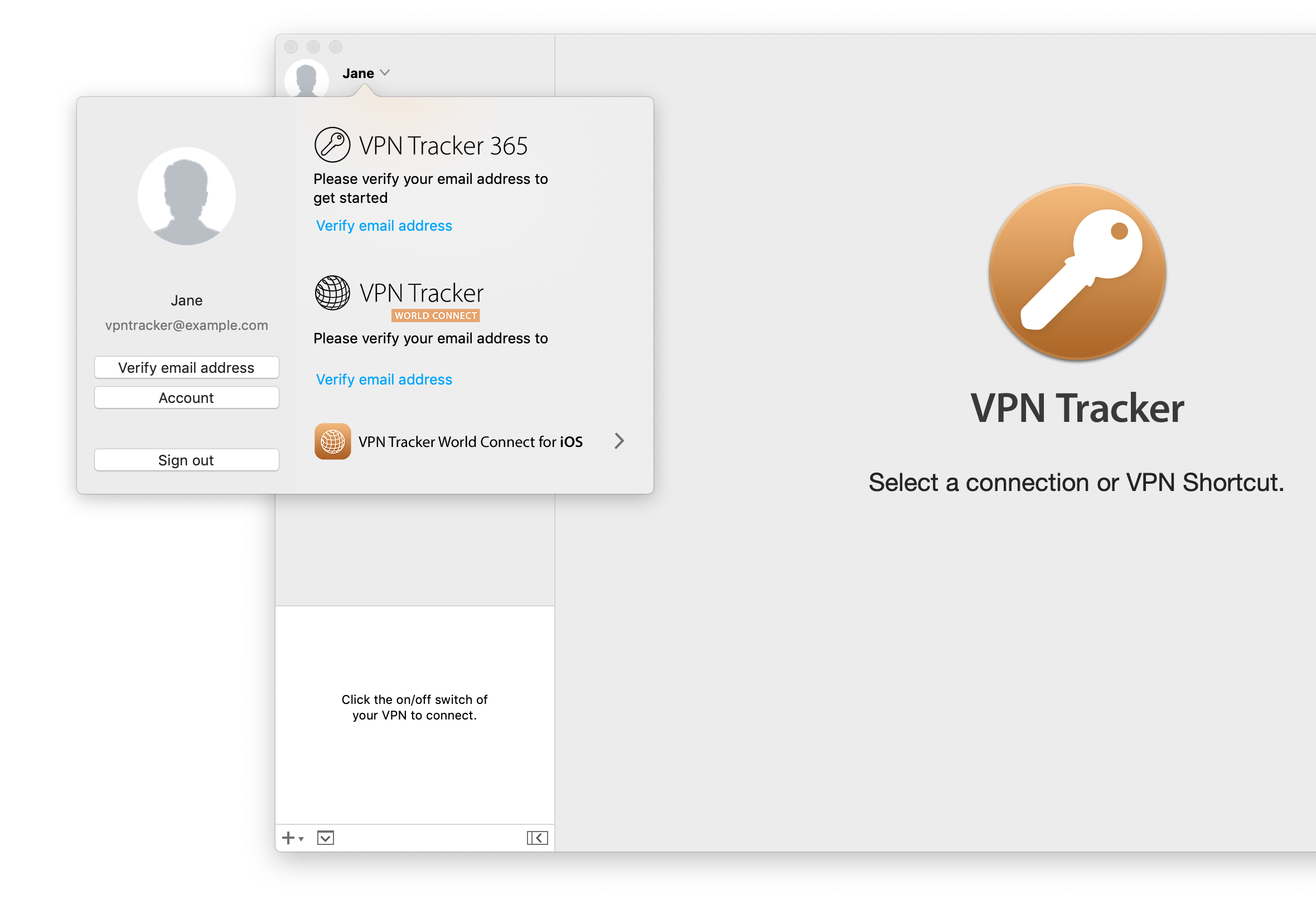
- Log in to you your account at my.vpntracker.com
- Go to "My Plans and Billing" in the sidebar, where you will see your current active plan(s), in case your plan is a team plan, please go to "Team Plans and Billing" in the sidebar
- To deactivate your renewal, flip the switch from blue to grey
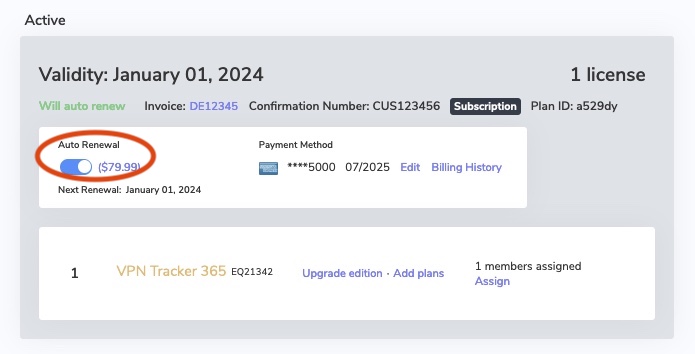
- After deactivating auto renewal, you will receive an email confirming the deactivation.
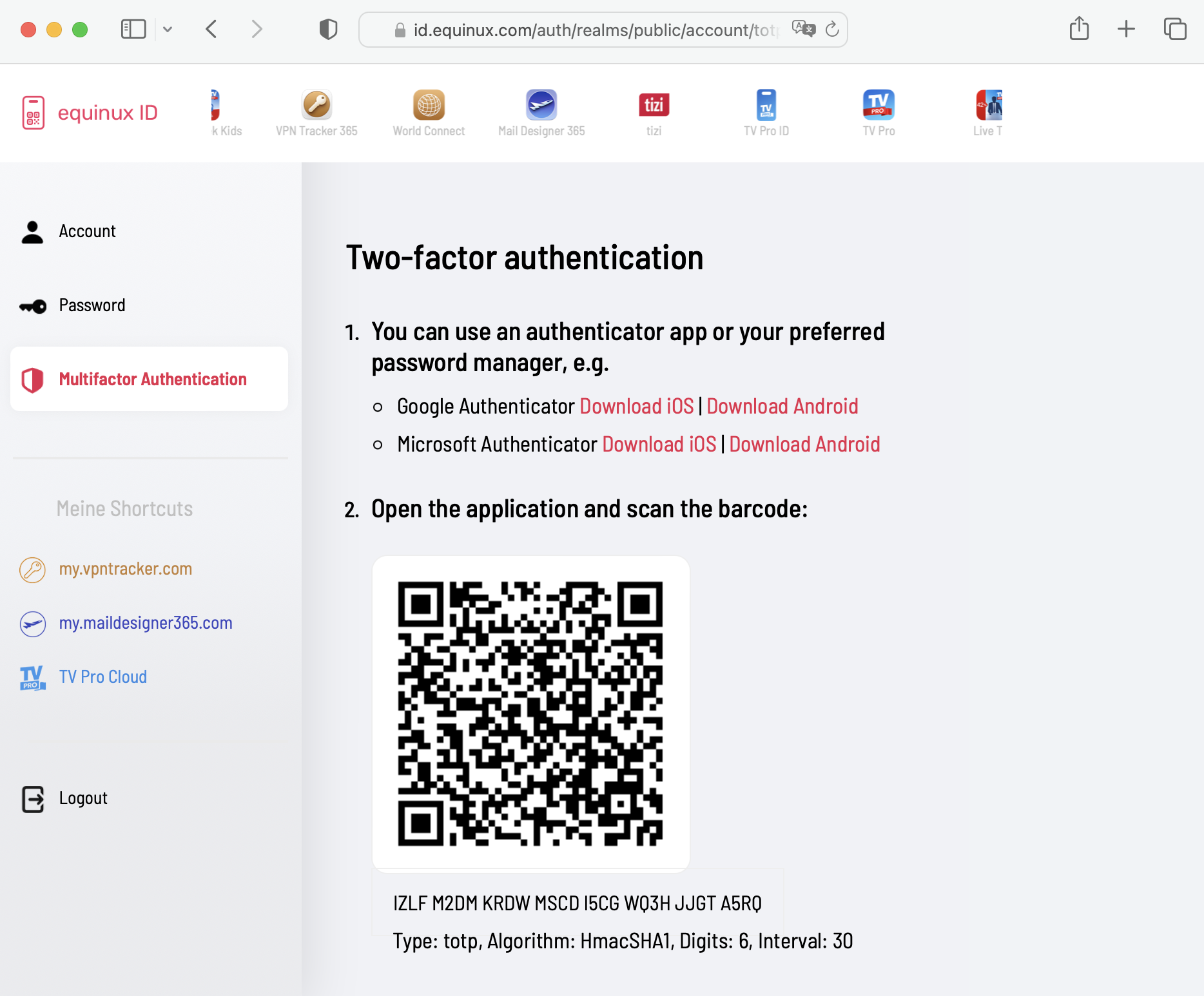
equinux 2FA supports all major authentication and password apps, including:
- Google Authenticator
- Microsoft Authenticator
- Twilio Authy
- 1Password
- FreeOTP
- Bitwarden
If you're experiencing issues with your World Connect connection in VPN Tracker, here's what to do:
1. Contact Support
In VPN Tracker, go to the Help menu and select "Contact Support".
In the window that opens:
- Enter "World Connect Issue" in the subject line.
- Describe the problem you're having so our support team can help you quickly.
2. Try These Steps in the Meantime
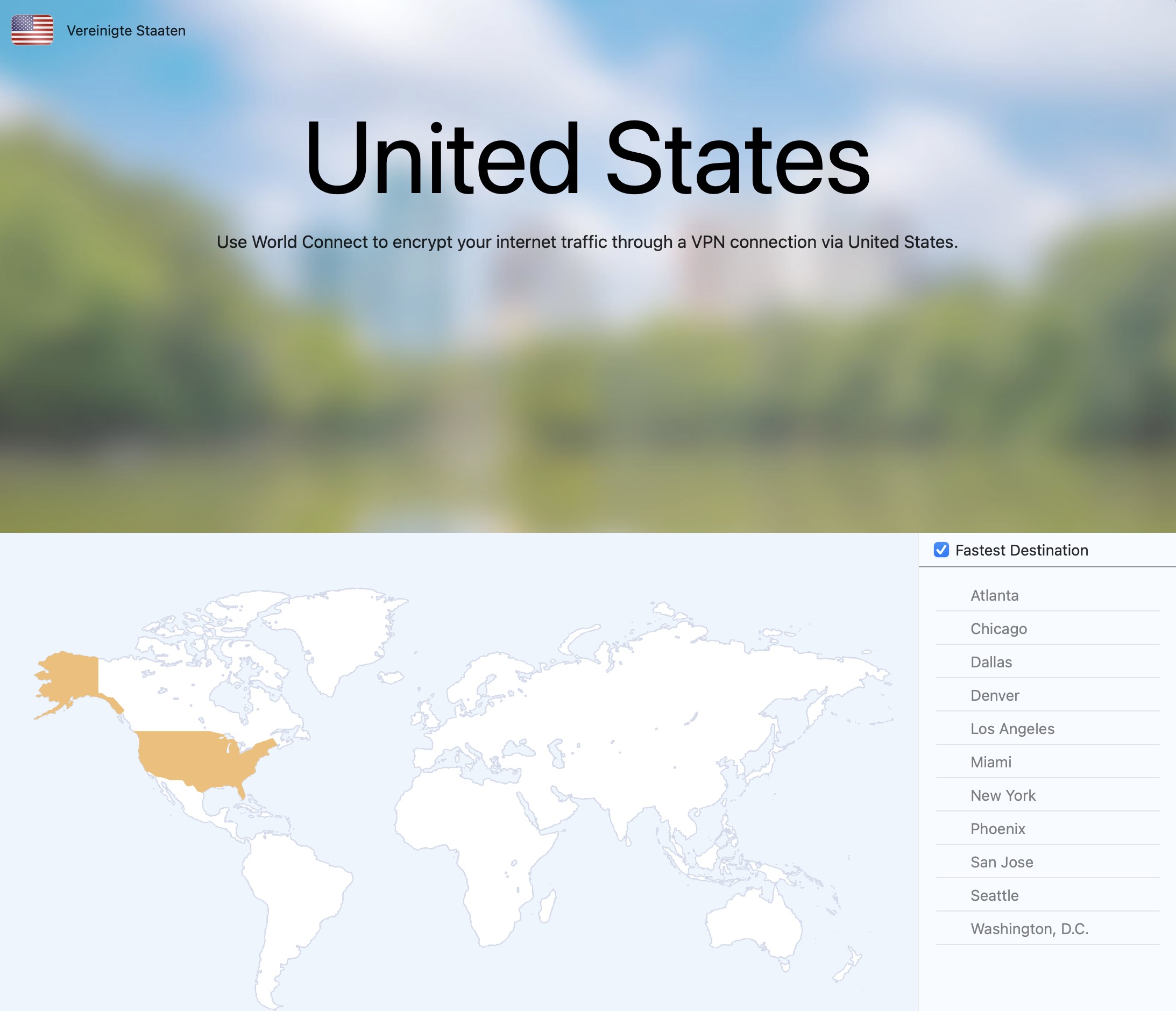
- If you're using a country-specific connection (e.g. "United States"), try unchecking the "Fastest Destination" option.
- Once unchecked, you can manually choose from the available cities (e.g. New York, Los Angeles, Miami, etc.).
- Try connecting to a different city to see if the issue is specific to one location.
These steps often help resolve temporary connection issues.
- Confirm your VPN location by checking your IP address. Use a service like WhatIsMyIP.com to make sure World Connect has assigned you an IP in the correct country.
- Restart your browser after connecting to World Connect. Modern browsers may keep DNS-over-HTTPS (DoH) sessions open from before the VPN connection. Restarting ensures all traffic is routed through the VPN.
- Use your browser’s Private Mode (or Incognito Mode). Websites can track previous sessions with cookies. Private Mode ensures your browser starts with fresh cookies, preventing the site from recognising your old session.
- Clear cookies or site data. If Private Mode is not convenient, manually clearing cookies and site data achieves the same effect and prevents the website from recognising your prior session.
- Disable DNS-over-HTTPS (DoH) in your browser. With DoH active, your browser may bypass the VPN’s DNS settings and resolve domains based on your physical location. Disabling DoH ensures DNS queries go through World Connect and reflect the VPN server location.
- Check whether the site blocks VPN traffic in general. Some websites block all known VPN IP ranges, regardless of location. You can test this by connecting to a US server while physically in the US. If access is still blocked, the site may simply prevent VPN usage.