




Frequently Asked Questions
If you use Shimo and have found that it has stopped working, check out VPN Tracker.
Alternative to Shimo 5
VPN Tracker supports many of the same VPN protocols as Shimo, but is built to support new Macs and macOS releases, including macOS Sonoma and new macOS Sequoia.
Fix your VPN - download VPN Tracker freeInstall the free VPN Tracker 365 trial and set up your VPN connection. Once you're connected, choose a VPN Tracker plan for ongoing updates, compatibility with the latest macOS releases and professional support.
Need help setting up your VPN? How to move your Shimo VPN connection to VPN TrackerFirst, start VPN Tracker and create a new free user account to start your trial. Now we can set up your VPN connection:
- In VPN Tracker, go to File > New > Company Connection
- Choose your VPN gateway manufacturer and device model or
- Go to Protocols and select your VPN protocol
Now you have a connection, you'll need to enter the connection details. You can look up some connection details in your Mac's Keychain:
- Go to Applications > Utilities > Keychain Access
- Search for "Shimo" in the top right corner
- You'll find entries named "Shimo: vpn.example.com" – where "vpn.example.com" is your VPN's gateway address
- Double-click the entry to open its details
- To find your pre-shared key: Locate the Shimo entry with an "Account" label ending with "groupPassword"
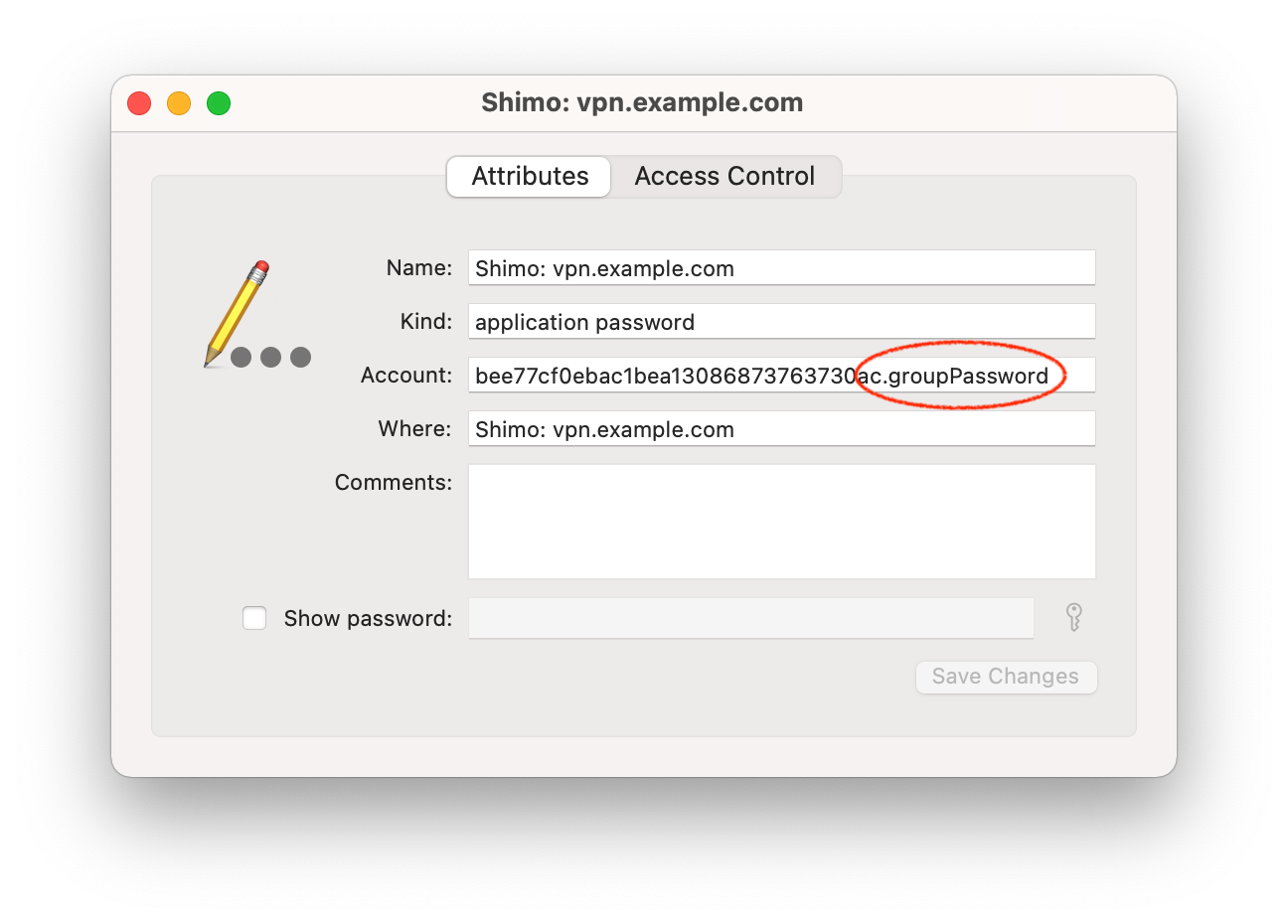
- To find your login password: Locate a Shimo Keychain entry with the account label ending in "userPassword"
- Click "Show password" and enter your macOS account password to reveal the password (note you may be prompted twice for it)
Choose "Configure" from the top right corner of your connection and put the details for your VPN connection in:
- For VPN gateway address, enter the gateway hostname from the Keychain entry names ("vpn.example.com" in our example)
- For the pre-shared key, enter the password from the Keychain labeled "groupPassword"
- Enter your username and password
- Start your connection and see if you're able to connect
Choose your authentication options
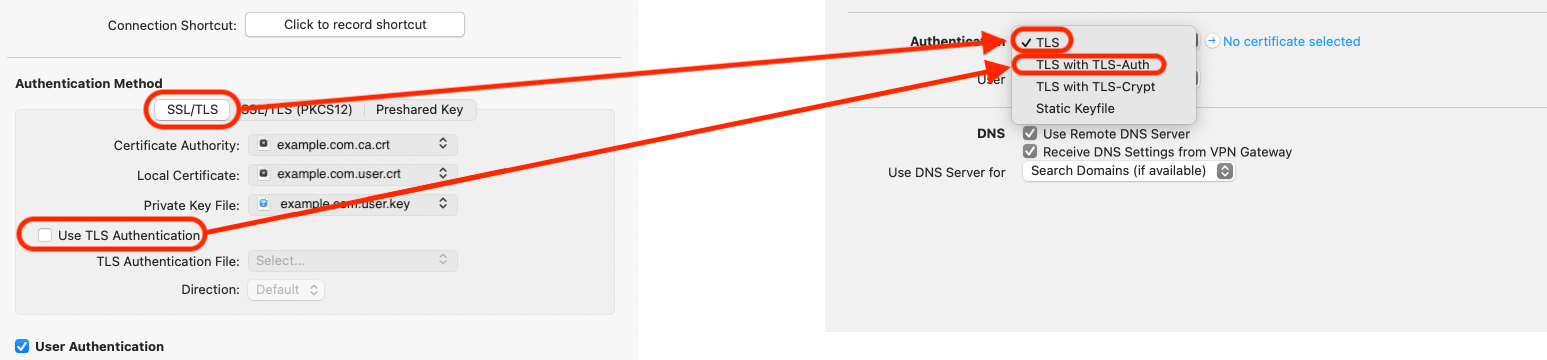
Information about certificates
Please keep in mind that, as well as the public part of the certificate, you also need to export the private key.
Important: Private keys cannot be imported into the Keychain alone and can only be imported together with the corresponding certificate. For this to occur, the certificate and private keys need to be in PKCS12 format. You can generate this format by entering the following command into the Terminal:
openssl pkcs12 -export -in (example.com).user.crt -inkey (example.com).user.key -out (example.com).user.p12
Following this, (example.com).user.p12 can be imported by a double click. When generating your keys, you will be asked to enter a password, as private keys in PKCS12 format are always encrypted. This can be a password of your choice but please be aware you will need to enter it again during the import.
Troubleshooting
What to do if you can't connect?
You may need additional details that your VPN admin might have given you when you first set up your VPN connection. Check your emails (tip: try searching for the VPN gateway address).