


Frequently Asked Questions
How can I use the stock buttons in Mail Designer 365?
Mail Designer 365 has pre-made buttons that you can use in your email designs.
‣ Within the "Contents" section of Mail Designer 365, you can click on the triangle icon or press Command⌘-2 to show shapes. ‣ You will have many different button options under the "Buttons" subsection.‣ Drag your chosen button to an image area. ‣ You can edit the message by double-clicking the text of the button.
Adding a link to your button:
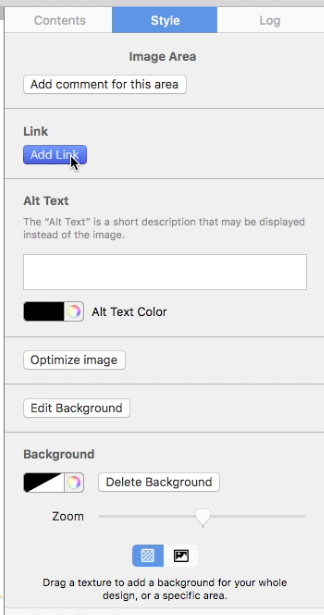
‣ Make sure to add a link to your desired landing page by double-click the button shape. ‣ When you double-click the shape, the "Style" section will open on the left side. ‣ Click on "Edit Link & Background."Please refer to the following page for how to add CTA buttons: Please refer to the following page for a brief overview of the Contents: Please refer to the following page for tips on how to strategically position your call-to-action buttons:‣ Under the "Link" subsection, you will be able to click "Add Link" to add the link to your landing page.