




Frequently Asked Questions
Does Adobe style snap alignment work in Mail Designer 365?
Currently, Mail Designer 365 does not offer an automatic snap alignment tool for design elements. However, guide lines are a great workaround that you can use to align text and images more precisely.
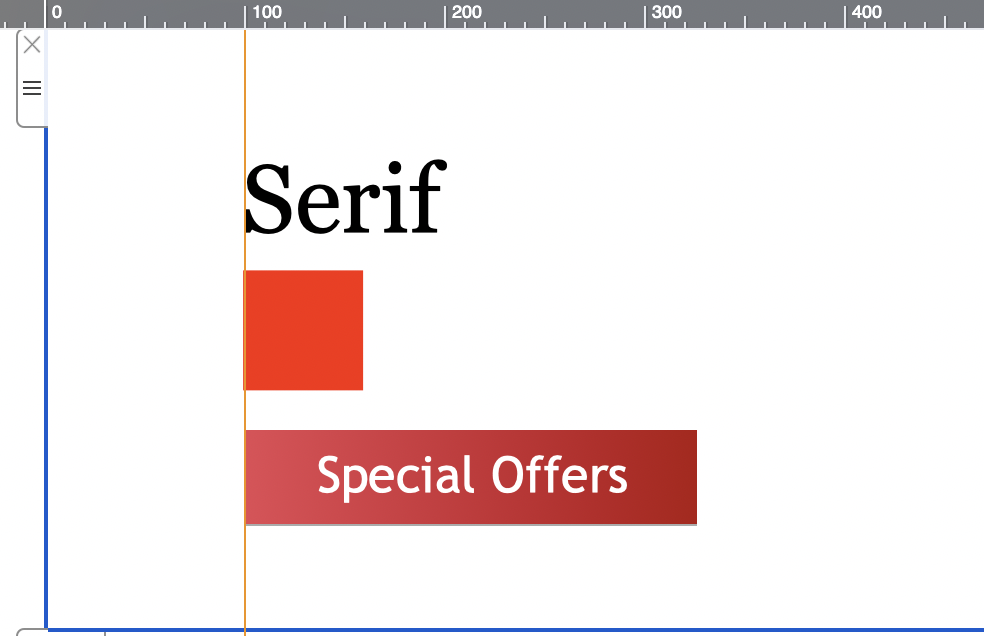
 Drag guidelines across your design to position them where you want to align objects, then use the line as a guide to align images, shapes, text, graphics, etc. throughout your design or just in one layout block:
 To hide the guidelines once you are done aligning, click on the "Hide layout outline" icon at the top right of the page:

Using guide lines
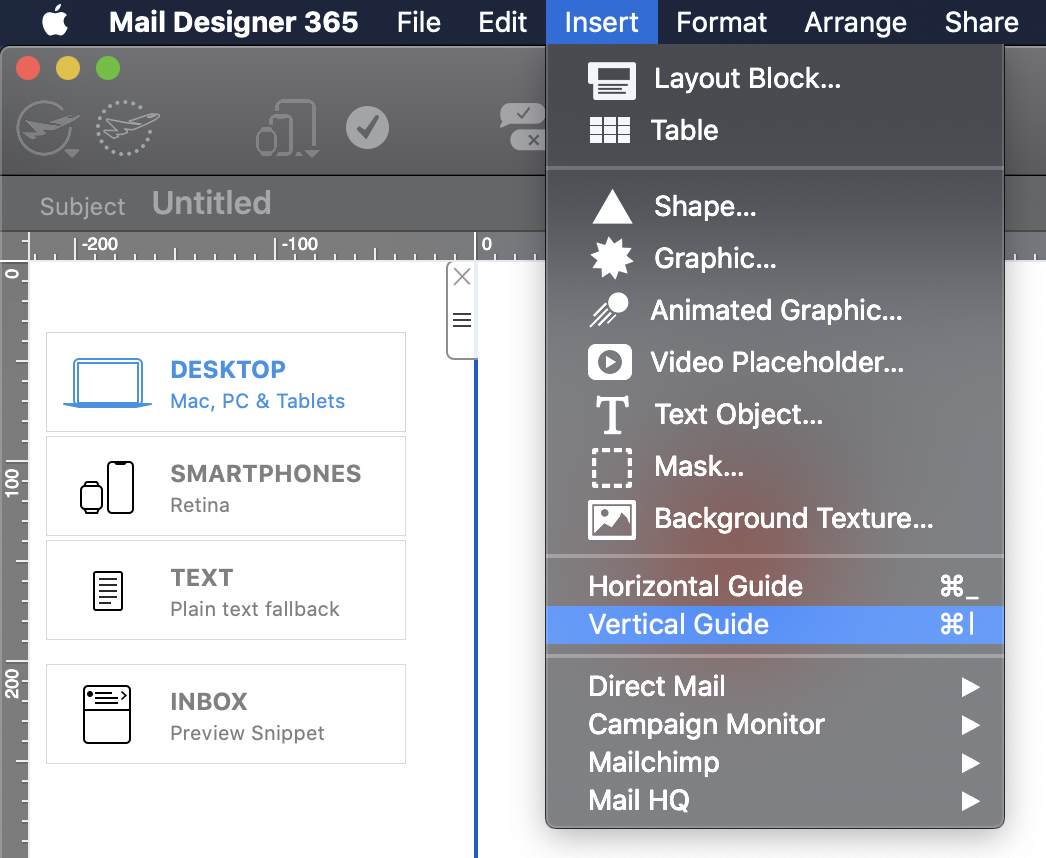
Guide lines act as a visual guide to help you align different elements within your design. To insert a guideline, go to "Insert" > "Horizontal/Vertical guideline":
Drag guidelines across your design to position them where you want to align objects, then use the line as a guide to align images, shapes, text, graphics, etc. throughout your design or just in one layout block:
To hide the guidelines once you are done aligning, click on the "Hide layout outline" icon at the top right of the page: