



Frequently Asked Questions
Step 1: Open your team in my.vpntracker.com
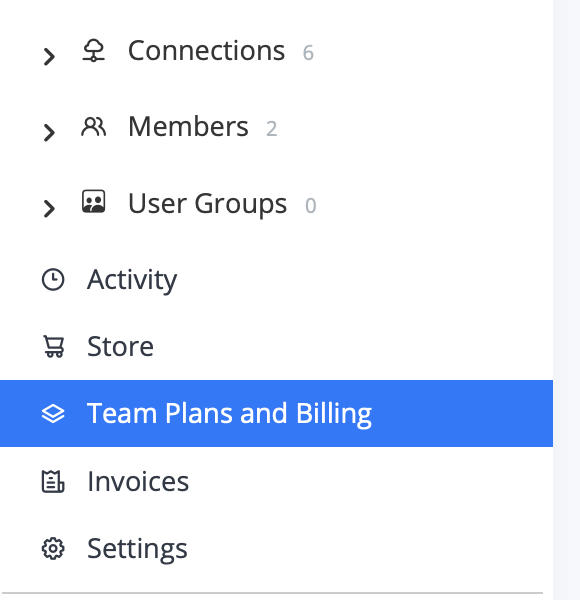
Go to my.vpntracker.com and log in with your account. In the sidebar, open your team and click Team Plans and Billing.
Step 2: Open Manage Plans
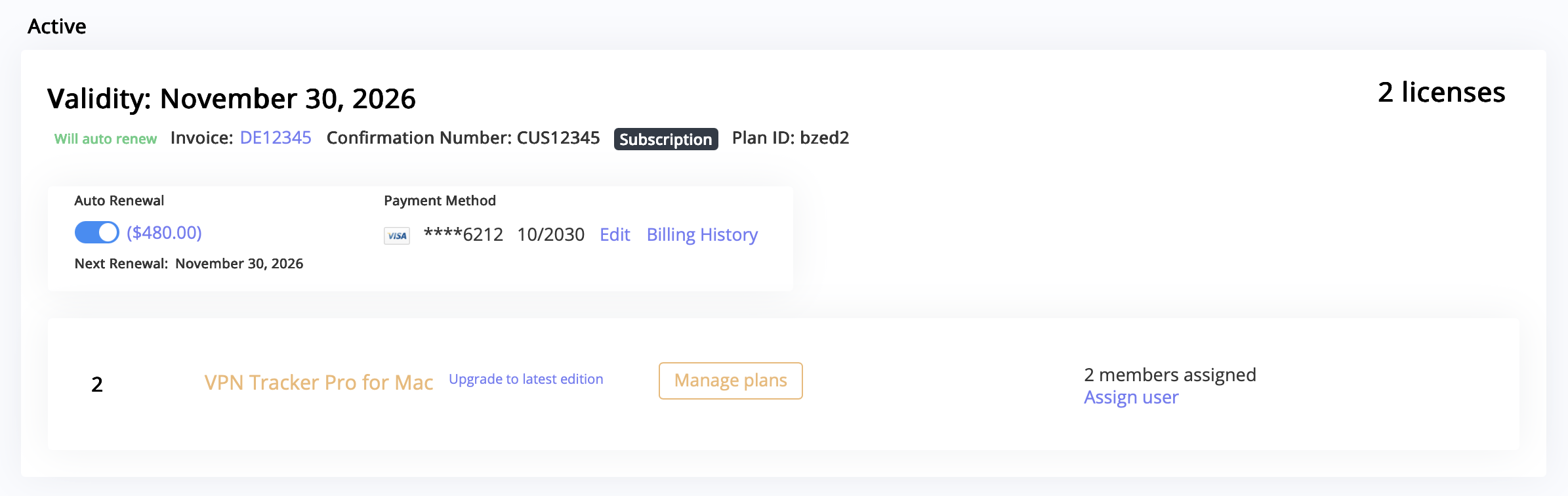
Under Active, find your current plan and click Manage plans. Here you can see how many licenses are currently included in your plan.
Step 3: Choose which license to remove
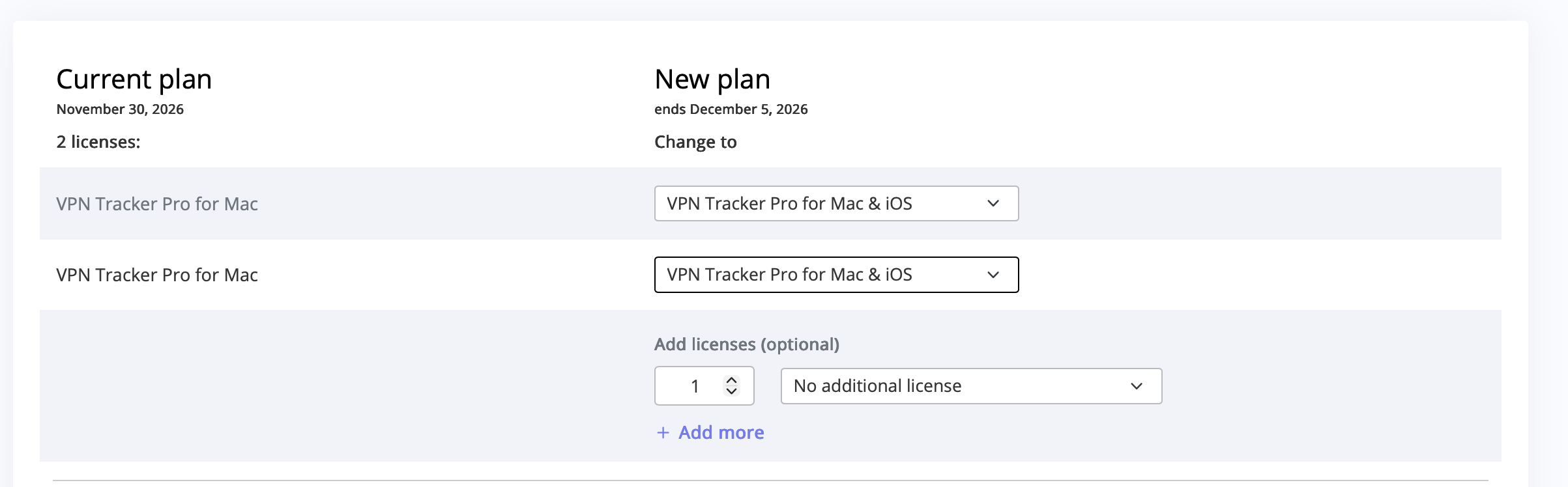
On the plan overview page, you will see a list of your licenses under Current plan and how they will look under New plan. For the license you want to remove, open the dropdown menu next to it.
Step 4: Select “Remove License”
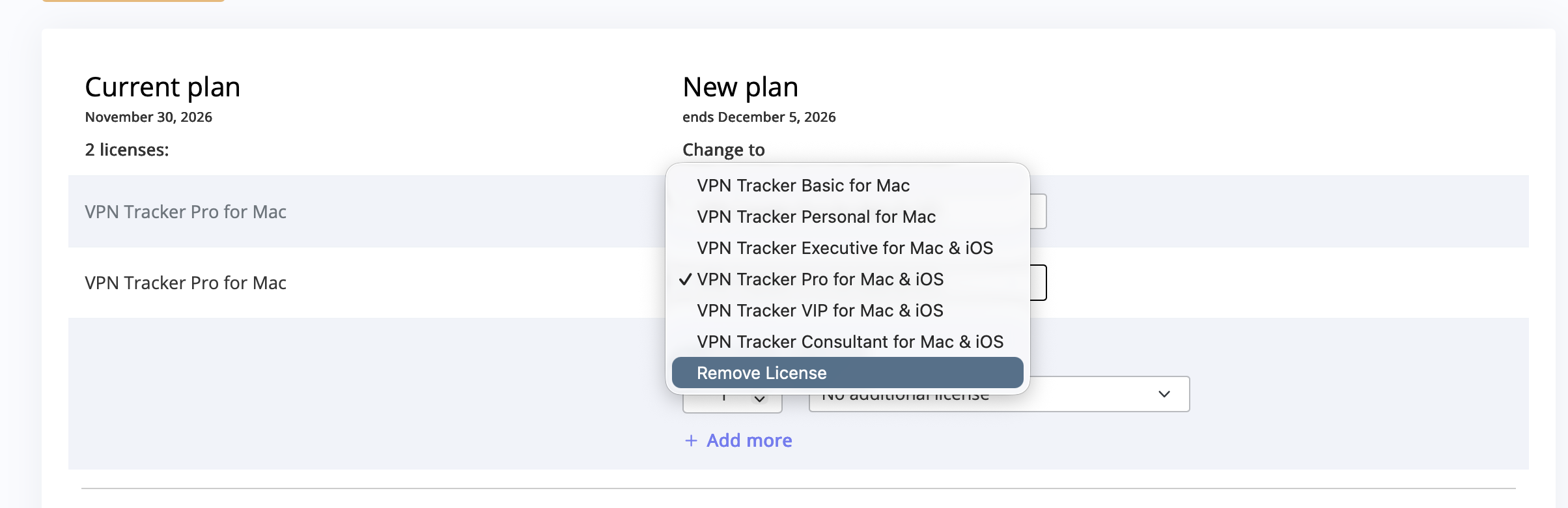
In the dropdown, select Remove License for the license you no longer need (for example, if user “xxx” is no longer using VPN Tracker, but “yyy” still is).
Step 5: Go to checkout and confirm
After adjusting your licenses, go to checkout to confirm the changes to your plan. Any remaining duration for the removed license will be credited automatically. The remaining license or licenses stay active for the users that still need VPN Tracker.
Step 6: Assign the remaining licenses
After updating your plan, go back to your team management area under Members and assign the remaining active licenses to the correct users. Since you removed one or more licenses, VPN Tracker does not automatically reassign them.