


Frequently Asked Questions
How can I combine different graphic elements in Mail Designer 365?
Combining different shapes and graphic elements is easy with Mail Designer 365.
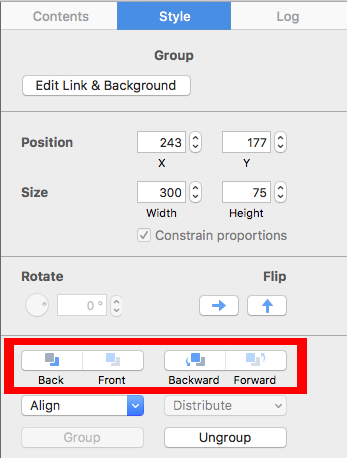
‣ First, choose a graphic element that you want to use from the "Contents" section.Please refer to the following page for how to combine different graphic elements:‣ Then, drag the element into an image area. ‣ Repeat these steps with other graphic elements that you want to use for the combination. ‣ After you have dragged in all of the graphic elements you want to combine, then start arranging them to create the look that you want. ‣ You can move different elements forward or backward, depending on what kind of look you want. ‣ Just click on the graphic element that you want to move backwards or forwards. ‣ Click the appropriate button found on the left side of your screen.