




Frequently Asked Questions
How do I rotate objects in Mail Designer 365?
In order to rotate the object, hold down the Command ⌘ key and then click one of the graphics resize controls of an object or graphic element. You will see that the cursor will turn into a rotate icon.
 This will allow you to rotate the object freely. You can rotate shapes, graphic elements, and image masks. You will be able to tell how many degrees you have rotated the object by the label that pops up during rotation:
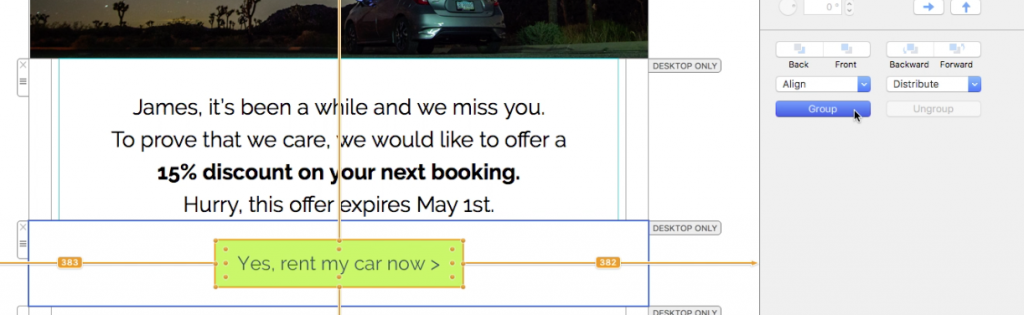
 If you want to rotate both the text and the object, hold the Command ⌘ key and click on both the shape and the text. You will see that the two things are now selected. Click “Group” on the right side.
 Once you have grouped the two things together, hold the command key and click on the resize controls. Again, you will see that the cursor will turn into a rotate icon. Then, feel free to rotate the selected items to your liking.
Please refer to the following page for further information on how to rotate objects:
Once you have grouped the two things together, hold the command key and click on the resize controls. Again, you will see that the cursor will turn into a rotate icon. Then, feel free to rotate the selected items to your liking.
Please refer to the following page for further information on how to rotate objects:
This will allow you to rotate the object freely. You can rotate shapes, graphic elements, and image masks. You will be able to tell how many degrees you have rotated the object by the label that pops up during rotation:
If you want to rotate both the text and the object, hold the Command ⌘ key and click on both the shape and the text. You will see that the two things are now selected. Click “Group” on the right side.
Once you have grouped the two things together, hold the command key and click on the resize controls. Again, you will see that the cursor will turn into a rotate icon. Then, feel free to rotate the selected items to your liking.
Please refer to the following page for further information on how to rotate objects: