




Frequently Asked Questions
How can I edit my background in Mail Designer 365?
Mail Designer 365 offers you an array of different options when it comes to editing your newsletter background.
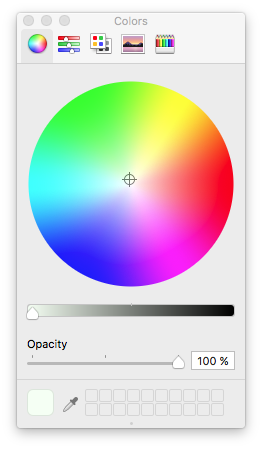
You can set a color as your email background. With the help of the color picker, you can even choose a color inspired by a photo or graphic. Just use the pipette to grab the color.
 You are also welcome to use any photos, textures, or patterns from Mail Designer's stock library. We included many different categories. Simply drag and drop the thumbnails from the design sidebar into your background.
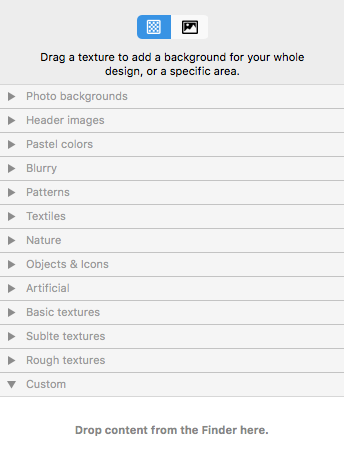 You can even use your own photos, textures, and patterns. Just simply drag it to your template from your desktop or the Finder. If you are using a third party's photo, texture, or pattern, make sure that you have permission to use it for commercial projects. Also, don't forget to give credit to the designer/artist.
You are also welcome to use any photos, textures, or patterns from Mail Designer's stock library. We included many different categories. Simply drag and drop the thumbnails from the design sidebar into your background.
You can even use your own photos, textures, and patterns. Just simply drag it to your template from your desktop or the Finder. If you are using a third party's photo, texture, or pattern, make sure that you have permission to use it for commercial projects. Also, don't forget to give credit to the designer/artist.