




Frequently Asked Questions
Transferring VPN connections and shortcuts from your reseller account to your personal account
To use the VPN Tracker 365 Reseller Portal, you'll need separate accounts for your reselling activities and your personal VPN Tracker 365 license(s) and connections.
Please note: You need to create a separate personal account by July 1st 2021 to continue using VPN Tracker 365.
If you have VPN Connections and Shortcuts saved in your Personal Safe (formerly known as Connection Safe), you can transfer them over to your new personal account in just a few simple steps.
Step One: Download a local copy of your Personal Safe connections from your Reseller account
- Go to VPN Tracker 365 > Preferences > Personal Safe
- Uncheck the box "Enable Personal Safe" to disable Personal Safe sync for all saved Shortcuts and connections and download a local copy on your Mac:
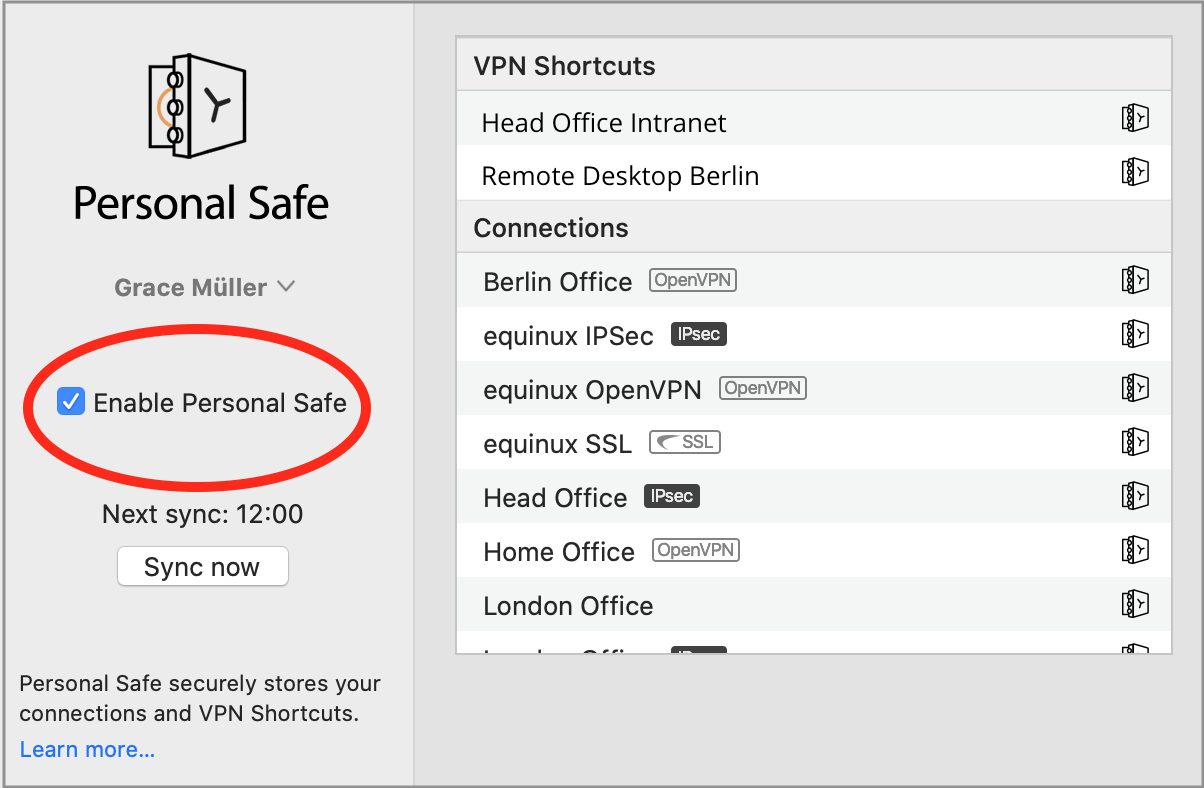
- Important: In the dialog, select "Only Remove from Personal Safe"

- Your connections will be stored locally on your Mac
Step Two: Set up a new personal account
- Sign out of your Reseller account via the button in the top left corner:
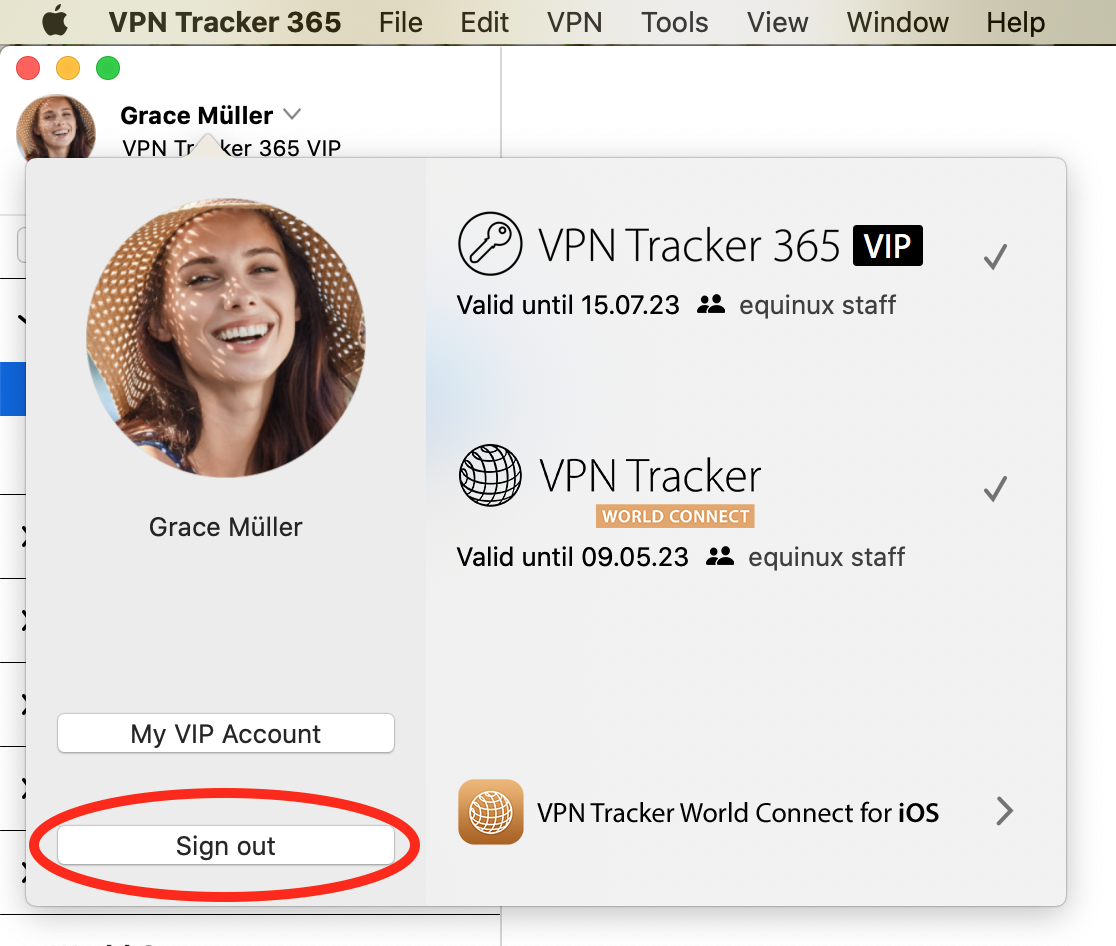
- If you have not done so already, you should now create a new personal account.
- This will be the account you use with your own personal VPN Tracker plan, as well as for internal Team Management (if relevant)
Step Three: Assign your plan to your new account
- Log in to my.vpntracker using your original Reseller account
- Using the Reseller tools, transfer licenses to your new Personal account
- Sign in to my.vpntracker with your new Personal account and assign yourself the license
Step Four: Re-sync your connection and shortcuts data to your Personal Safe
- Sign back in to VPN Tracker 365 with your new personal account
- Open up your Personal Safe preferences again
- Check "Enable Personal Safe" to add your connections to Personal Safe