




Frequently Asked Questions
How do I fix issues with random MAC Addresses under macOS Sequoia
After upgrading to macOS 15 Sequoia, you might notice that your Mac constantly changes its MAC address, affecting your ability to connect to your VPN. This behavior is due to macOS 15’s new privacy features, which can assign randomized MAC addresses for network connections. However, you can configure your network settings to always use a fixed MAC address, which can resolve issues with VPN connectivity, such as DHCP reservations failing due to MAC address changes.
How to Set a Fixed MAC Address in macOS 15 (Sequoia):
-
Open System Settings:
- Click the Apple logo in the top-left corner of your screen.
- Select System Settings from the dropdown menu.
-
Go to Wi-Fi Settings:
- In the left sidebar, click Wi-Fi.
- Select the Wi-Fi network you usually connect to for VPN access and click on "Details...".
-
Configure the MAC Address:
- Look for the option labeled Private Wi-Fi Address.
- Change this option to "Fixed" to use a fixed MAC address instead of a randomized one.
In some cases, the Fixed Setting may still cause issues. If this is the case, change the setting to "Off"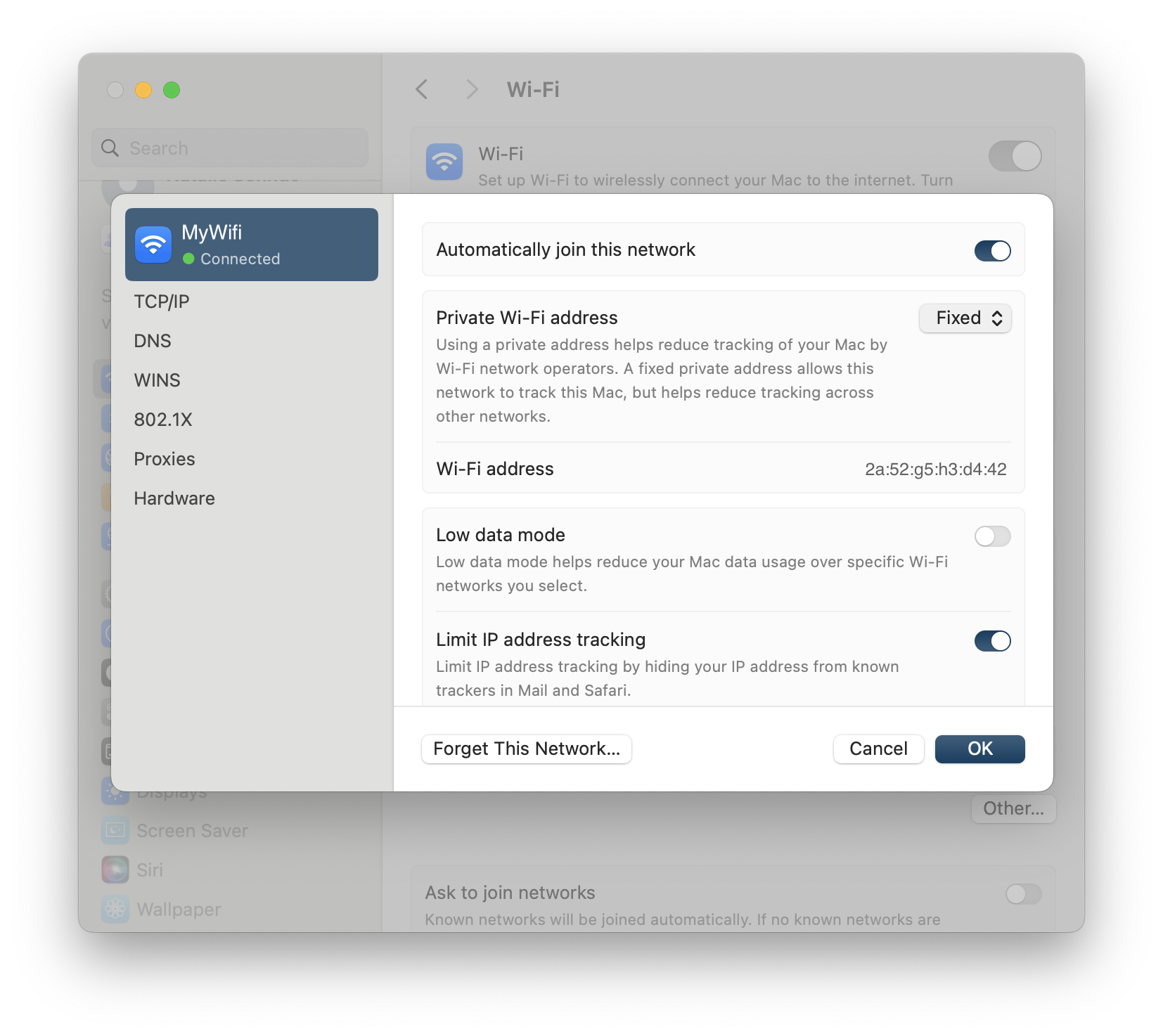
- Your network will now always connect using the same MAC address, helping maintain your VPN connection stability.
-
Re-establish VPN Tracker Connection:
- Once you've set a fixed MAC address, ensure that your VPN’s DHCP reservation or configuration aligns with this MAC address.
This process will restore the VPN Tracker’s ability to connect reliably using a consistent MAC address, resolving issues caused by macOS 15 Sequoia’s default MAC address randomization feature.