




Frequently Asked Questions
How do I use VPN Tracker to connect to a server?
When connected to a VPN, your network shares won't show up in the Finder sidebar menu:
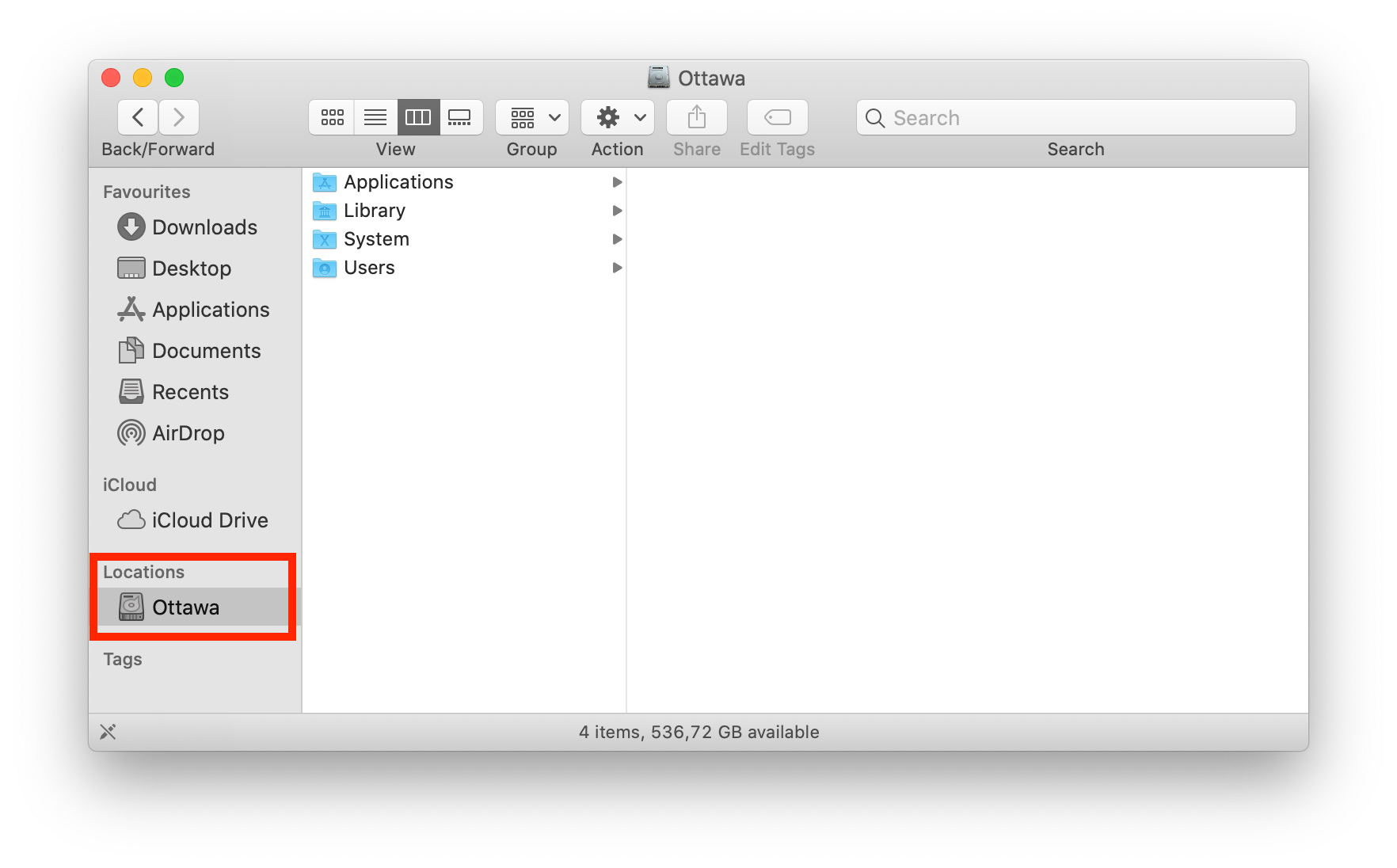 To access your file server via VPN, you have two options...
To access your file server via VPN, you have two options...
Option 1: Manual Access:
- Open Finder.
- Open the "Go" menu.
- Choose "Connect to Server..."
- Enter the IP address (e.g."192.168...")
- Click "Connect".
That's it! Now you have access to your files in Finder for this session. Please note, you will have to carry out these steps each time you need to connect.
Option 2: Creating a Shortcut:
You can also create a shortcut to your server within the VPN Tracker app, meaning it will be saved for whenever you need to access the server.
- Go to "VPN Shortcuts" in the app menu.
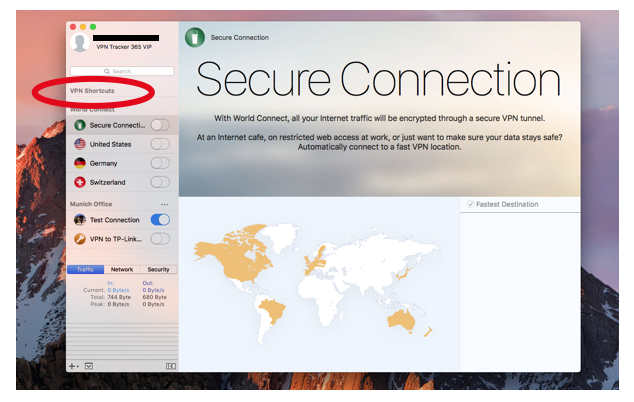
- In the shortcuts section, click on the bottom menu and drag out the File Server icon.
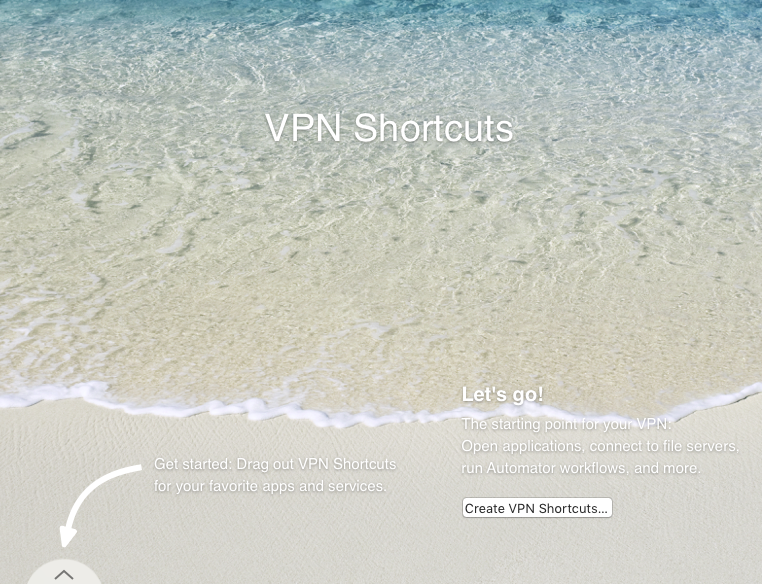
- Choose a VPN connection and a server to create your shortcut. If your chosen server does not appear on the list you can also enter it manually.
After you have completed these steps your connection will be saved in the shortcuts section for whenever you need to use it.
This video tutorial shows you how to quickly create a VPN Shortcut to a file server...