




Frequently Asked Questions
Can I share VPN Shortcuts with my team?
Yes! Pre-configuring VPN Shortcuts to share with your team is a productive way to ensure everyone can get connected to crucial internal services such as...
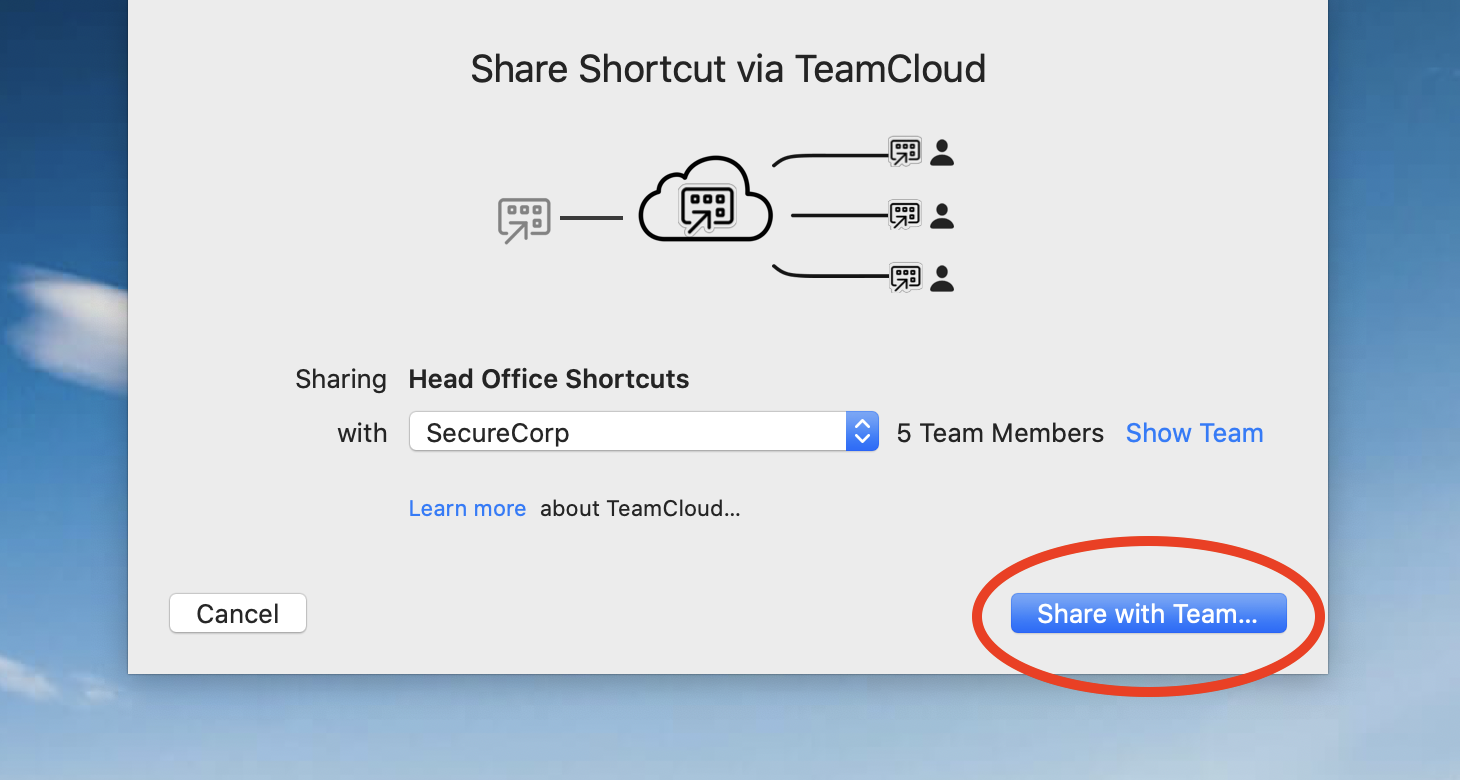 Once a Shortcuts collection has been shared, it will be available for all of your team to access with no further action required.
How to export VPN Shortcuts as a .zip file
Alternatively, you can also opt to export VPN Shortcuts as a .zip file which users can manually import into VPN Tracker 365.
Go to the VPN connection where your Shortcuts are configured and click "Configure" to open the configuration settings.
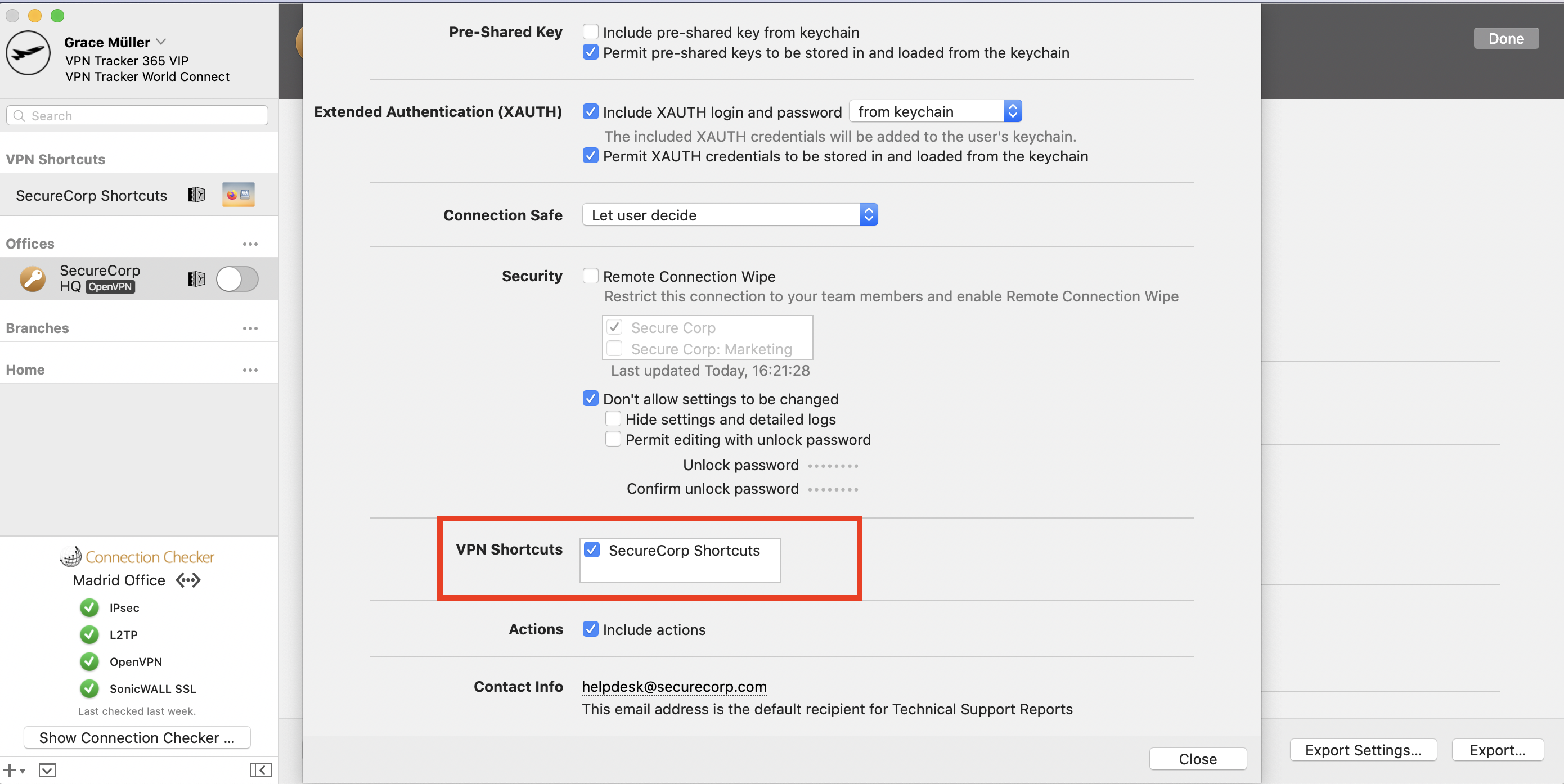
At the bottom of this window, go to "Export Settings" here you will see a range of different settings for your connection export. Go to "VPN Shortcuts" and check the box next to the Shortcuts Collection you wish to share:
Once a Shortcuts collection has been shared, it will be available for all of your team to access with no further action required.
How to export VPN Shortcuts as a .zip file
Alternatively, you can also opt to export VPN Shortcuts as a .zip file which users can manually import into VPN Tracker 365.
Go to the VPN connection where your Shortcuts are configured and click "Configure" to open the configuration settings.
At the bottom of this window, go to "Export Settings" here you will see a range of different settings for your connection export. Go to "VPN Shortcuts" and check the box next to the Shortcuts Collection you wish to share:
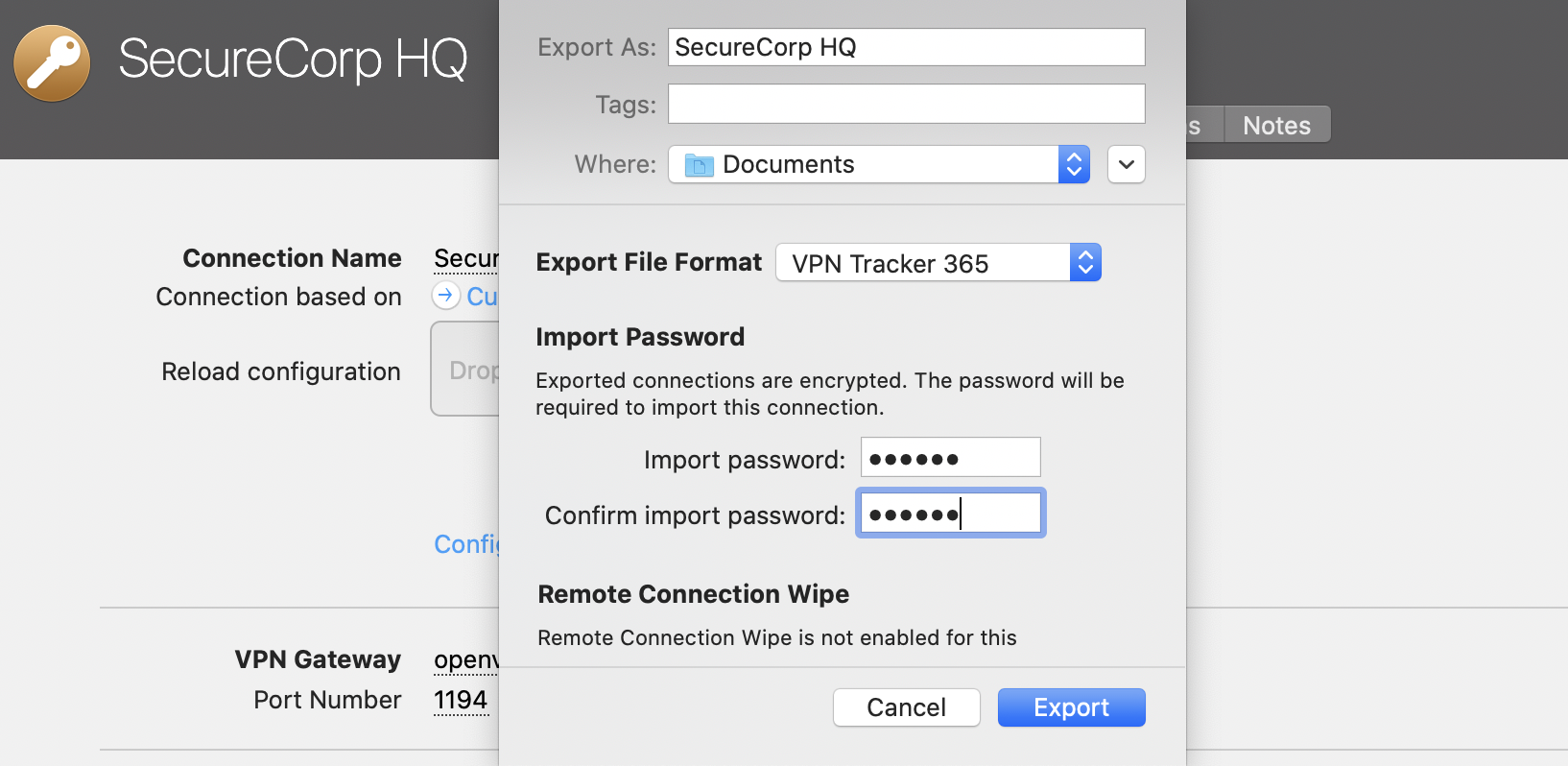
 Close the settings window, then click "Export". Select an export location and enter an import password for better security. Once you're ready, click "Export" to create a .zip file of the connection which you can send to your team members:
 Once a team member receives the file, they can double click it to open the connection in the VPN Tracker 365 app on their Mac, then enter your chosen import password. Following this, the VPN connection, along with all the Shortcuts you configured, will be ready to use straight away.
- Network shares
- Databases
- Email accounts & calendars
- Company intranet
- Remote Desktop
Once a Shortcuts collection has been shared, it will be available for all of your team to access with no further action required.
How to export VPN Shortcuts as a .zip file
Alternatively, you can also opt to export VPN Shortcuts as a .zip file which users can manually import into VPN Tracker 365.
Go to the VPN connection where your Shortcuts are configured and click "Configure" to open the configuration settings.
At the bottom of this window, go to "Export Settings" here you will see a range of different settings for your connection export. Go to "VPN Shortcuts" and check the box next to the Shortcuts Collection you wish to share:
Close the settings window, then click "Export". Select an export location and enter an import password for better security. Once you're ready, click "Export" to create a .zip file of the connection which you can send to your team members:
Once a team member receives the file, they can double click it to open the connection in the VPN Tracker 365 app on their Mac, then enter your chosen import password. Following this, the VPN connection, along with all the Shortcuts you configured, will be ready to use straight away.