




Frequently Asked Questions
How can I add a link to an image area for my social media accounts in Mail Designer 365?
You can create a link for an image area, so the image area will be clickable in your email. Choose a layout block with image areas.
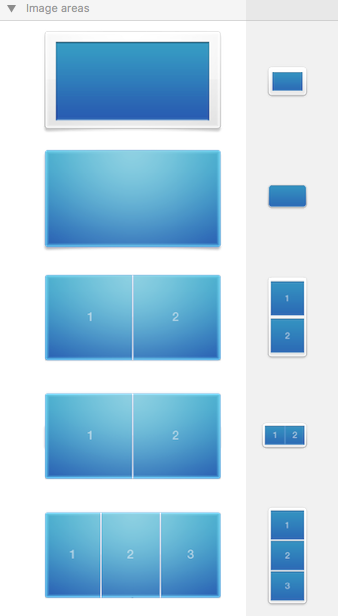 It’s important to note that an entire image area will be displayed as a single image in your email. It does not matter how many shapes or graphics you have within a single image area, the entire image area will be displayed as a single image. Also, you can only assign one link per image area. If you want to add multiple links for different social media accounts, you will need to choose a layout block with multiple image areas.
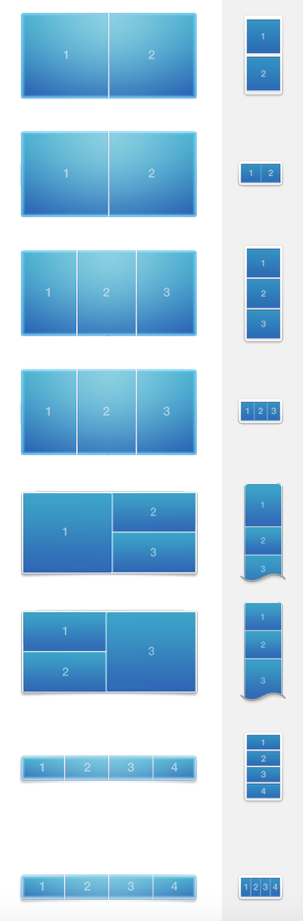 You can use these blocks to create multiple image area links. For instance, if you use a layout block with 4 image areas, you can add 4 buttons with different links to 4 social media sites.
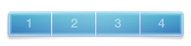 Just make sure to add one icon per one image area. Assign one link per one icon.
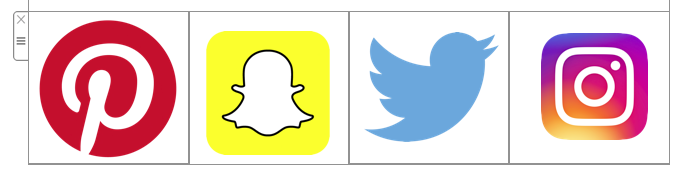
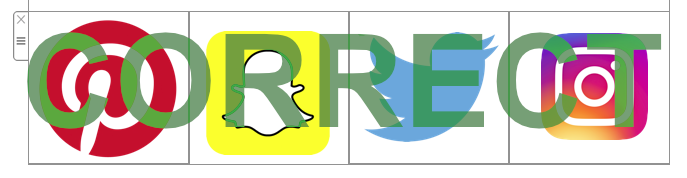
Correct because: 4 different icons in 4 different image areas. You can add 1 link per 1 image area. Therefore, you can add 4 different links total.
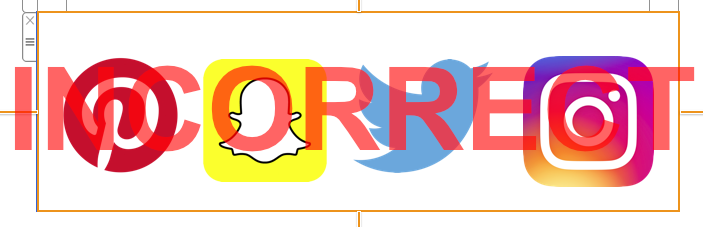 Incorrect because: 4 different icons in 1 image area. You can only add 1 link per 1 image area. Therefore, 4 icons will only lead to 1 landing page.
Please refer to the following page for more information on how to add different buttons with different links to your Mail Designer 365 email design:
Incorrect because: 4 different icons in 1 image area. You can only add 1 link per 1 image area. Therefore, 4 icons will only lead to 1 landing page.
Please refer to the following page for more information on how to add different buttons with different links to your Mail Designer 365 email design:
For a video tutorial:
It’s important to note that an entire image area will be displayed as a single image in your email. It does not matter how many shapes or graphics you have within a single image area, the entire image area will be displayed as a single image. Also, you can only assign one link per image area. If you want to add multiple links for different social media accounts, you will need to choose a layout block with multiple image areas.
First, let's go over how to assign 1 link to 1 image area (Great for linking to only 1 social media account):
‣ To create an image area link, choose an image area in your design.Remember: 1 link to 1 image area. This means you can only assign 1 link to 1 social media outlet within 1 image area.‣ Click the "Add Link" button from the Style section of the sidebar. ‣ Then, just enter your URL. ‣ The entire image area will be “hot” and can be clicked in your final message.
‣ A little link icon will show you for which image areas links has been embedded. ‣ Note: It is not possible to add a link to individual components of a single image area.
How to assign multiple links (Great for linking multiple social media accounts):
We’ve included several layout blocks that contain several image areas next to each other.
You can use these blocks to create multiple image area links. For instance, if you use a layout block with 4 image areas, you can add 4 buttons with different links to 4 social media sites.
Just make sure to add one icon per one image area. Assign one link per one icon.
Correct vs. Incorrect
Correct because: 4 different icons in 4 different image areas. You can add 1 link per 1 image area. Therefore, you can add 4 different links total.
Incorrect because: 4 different icons in 1 image area. You can only add 1 link per 1 image area. Therefore, 4 icons will only lead to 1 landing page.
Please refer to the following page for more information on how to add different buttons with different links to your Mail Designer 365 email design:For a video tutorial: