What is a MAIL FROM Domain?
When sending an email, there are two addresses that reveal its source:
- a FROM address, visible to the recipient
- a MAIL FROM address denoting the message's source
Often referred to as the envelope sender, envelope from, bounce address, or Return Path address, the MAIL FROM address is utilized by mail servers for returning bounce messages and error notifications. Typically, recipients will only see the MAIL FROM address if they check the email's source code.
By default, Mail Designer 365 Campaigns automatically assigns a MAIL FROM domain to the emails you send, unless you opt for a custom domain.
This FAQ outlines the advantages of configuring a personalized MAIL FROM domain, as well as how to get set up.
When do I need a MAIL FROM Domain?
When you use Mail Designer 365 Campaigns for sending emails, the default MAIL FROM domain automatically uses a subdomain of Mail Designer 365 Campaigns (
sentwith.maildesigner365.com). In this case, Sender Policy Framework (SPF) authentication effectively validates these messages since the default MAIL FROM domain aligns with the Mail Designer – i.e. the application responsible for sending the email.
However, if you would prefer not to use Mail Designer 365 Campaigns' default MAIL FROM domain, and instead wish to opt for a personalized subdomain under your own domain, this is known as utilizing a custom MAIL FROM domain within Mail Designer 365 Campaigns.
In short, using a custom MAIL FROM domain allows you to gain the flexibility to utilize SPF, DKIM, or both for attaining Domain-based Message Authentication, Reporting, and Conformance (DMARC) validation.
DMARC empowers a sender's domain to signal that emails dispatched from the domain are safeguarded by one or more authentication systems. DMARC validation can be achieved through SPF compliance, DKIM compliance, or both methods.
Requirements for a custom MAIL FROM domain
When setting your own MAIL FROM domain, the following requirements must be met:
- Must be a subdomain of the parent domain of a verified email address or domain
- Should not be the same as a subdomain that you are using to send email from
- Should not be the same as a subdomain that you are using to receive email
How to set up a custom MAIL FROM domain in Mail Designer 365 Campaigns
In order to set up a custom MAIL FROM domain, you'll need to add records to the DNS configuration for the domain.
Mail Designer 365 Campaigns requires users to publish an
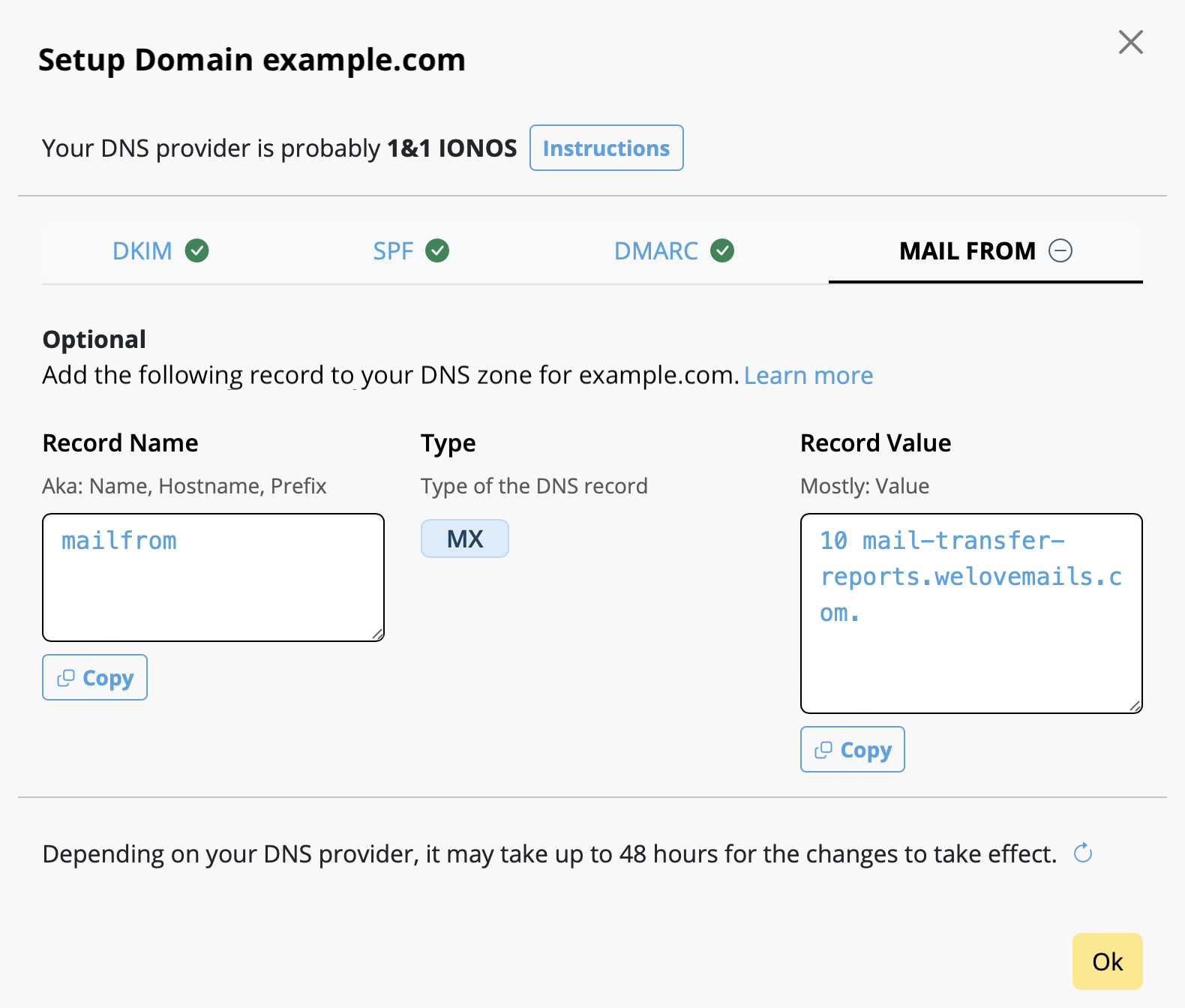
MX record so that your domain can receive the bounce and complaint notifications sent to you by email providers. You will also have to publish an
SPF (type TXT) record to show that Mail Designer 365 is authorized to send emails from your domain.
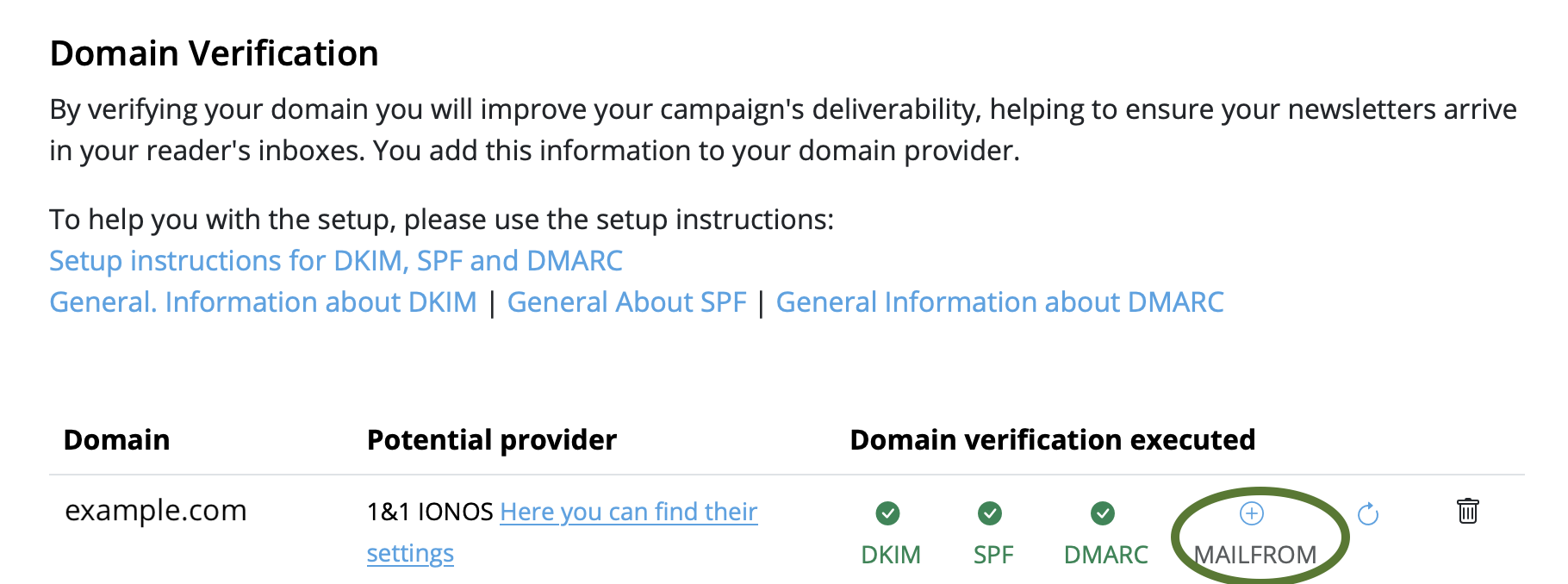
- Log in to your my.maildesigner365 account and go to From:addresses > Domain Verification
- Locate your domain in the list and click on the tab MAILFROM:
- You will now see and be able to copy the text for the new MX record you need to add to your domain's DNS record
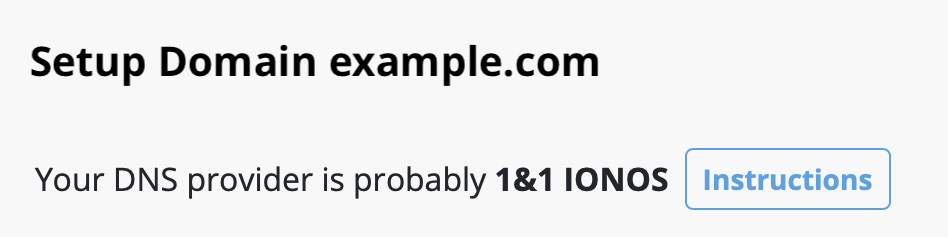
Tip: Unsure on how to edit your DNS record? Mail Designer 365 Campaigns automatically detects your domain's DNS provider and links you to a provider-specific guide:
Please note once you are done, it could take up to 48 hours to update your settings, depending on your DNS provider.
The green checkmark will indicate when the setup is complete: